Command Palette
The command palette provides quick access to files and actions through a keyboard-driven interface, inspired by VS Code’s command palette.
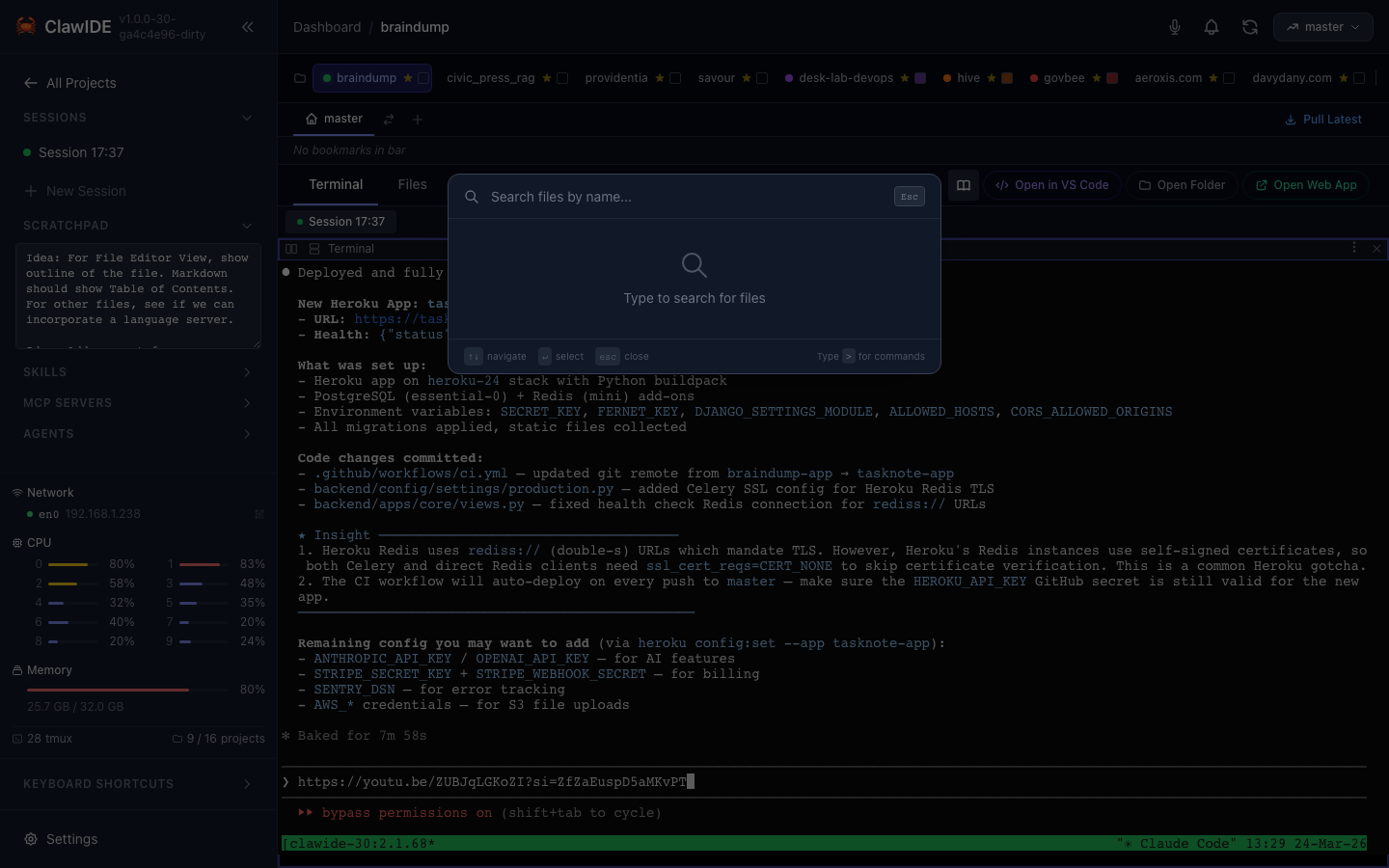
Opening the Palette
| Shortcut | Mode |
|---|---|
Cmd+P (macOS) / Ctrl+P | File search — Find and open project files |
Cmd+Shift+P (macOS) / Ctrl+Shift+P | Command mode — Execute actions |
You can also switch modes by typing > at the beginning of the search input to enter command mode, or deleting it to return to file search.
File Search
In file search mode, the palette lists all files in your project with fuzzy matching. Results are scored by match quality, with recent files prioritized. Select a file to open it in the File Editor.
- File type icons indicate the language (JS, Python, Go, etc.)
- Path segments are shown for disambiguation
- Recently opened files appear first
Commands
In command mode (prefix >), you can execute text transformations and editor actions:
Text Transformations
- Sort Lines — Sort selected lines alphabetically
- Transform to Uppercase / Lowercase / Title Case
- Transform to snake_case / camelCase / kebab-case
- Trim Trailing Whitespace
- Delete Empty Lines
Line Operations
- Duplicate Line — Copy the current line below
- Delete Line — Remove the current line
- Join Lines — Merge selected lines
- Reverse Lines — Reverse line order
- Remove Duplicate Lines
- Indent / Outdent Selection
- Toggle Comment
Navigation
- Go to Line — Jump to a specific line number
File Operations
- New File / New Folder
- Copy File Path / Relative Path / File Name
Keyboard Navigation
| Key | Action |
|---|---|
↑ / ↓ | Navigate results |
Enter | Execute selected command or open file |
Esc | Close the palette |
Recent History
The palette remembers your recently used commands and files, storing them in the browser’s local storage. Recent items appear at the top of results for quick re-access.