Dashboard
The dashboard is your central hub for managing projects in ClawIDE. From here you can view all imported projects, create new ones, and navigate to any project workspace.
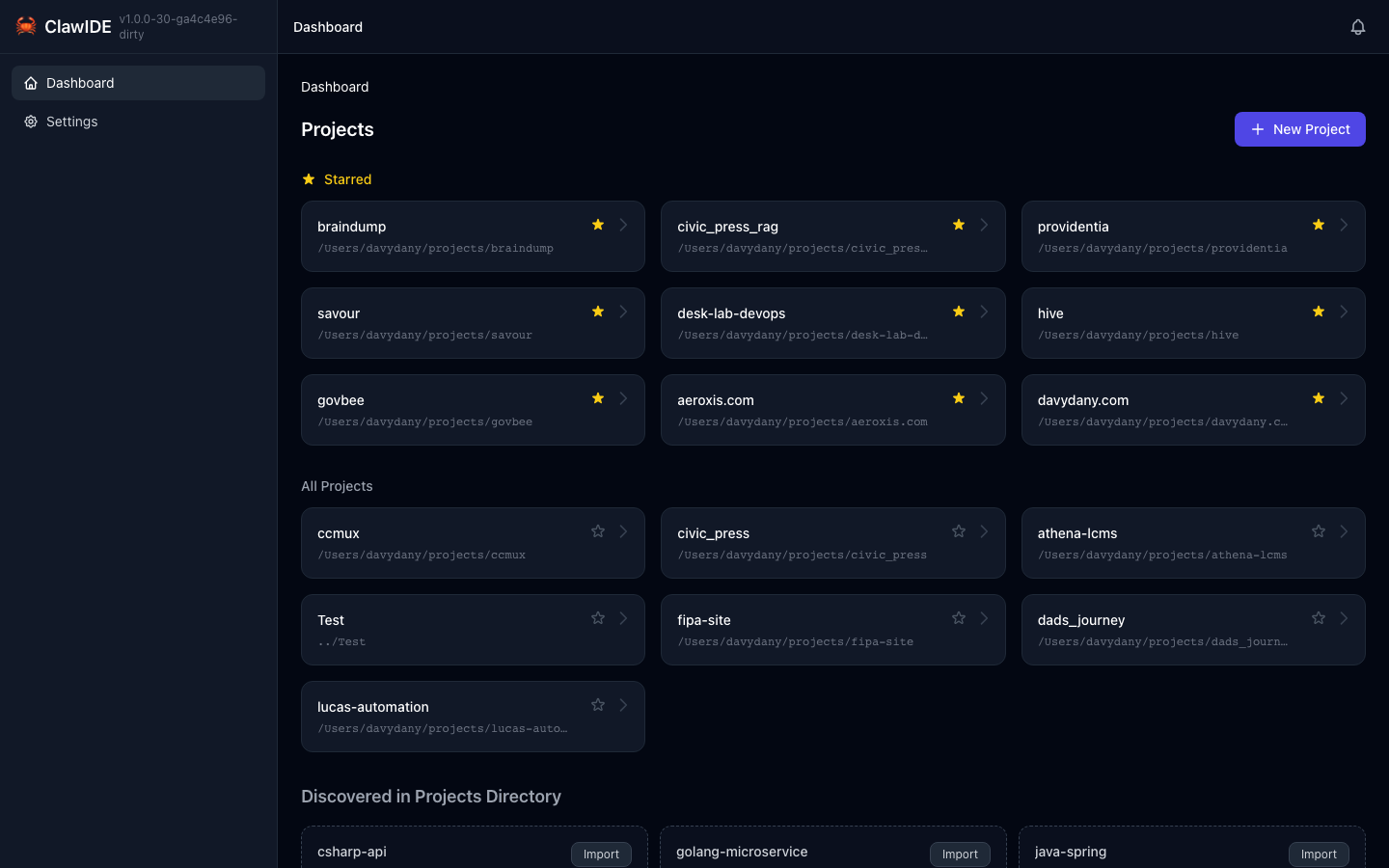
Project List
When you open ClawIDE, the dashboard displays your starred projects in a bar at the top, with remaining projects accessible via a dropdown. Each project shows:
- The project name with its assigned color
- The project path on disk
- Quick-access navigation to the project workspace
Projects are loaded from the configured projects directory (default: ~/projects). Hidden files and worktree directories are automatically excluded.
Starred Projects
Star your most-used projects to pin them to the dashboard bar. Drag starred projects to reorder them. Non-starred projects are available in a dropdown below the bar.
Color-Coding
Each project is assigned a color that appears on the project card and throughout its workspace. Feature workspaces within a project also get their own colors, making it easy to visually identify where you are.
Creating a New Project
To create a new project:
- Click the Create Project button on the dashboard.
- The Project Wizard opens with options to create from a template, generate with an LLM, or start empty.
- ClawIDE creates the project directory and sets up the workspace.
Importing Existing Projects
ClawIDE automatically discovers directories within your configured projects path. Any directory in ~/projects (or your configured projects directory) appears on the dashboard and can be opened as a workspace.
To change the projects directory, see Settings or Configuration.
Navigating to a Project
Click on any project card to open its workspace. The workspace provides access to:
- Terminal Sessions — Run Claude Code sessions
- File Editor — Browse and edit files
- Docker Integration — Manage Docker services
- Git Worktrees — Work on multiple branches
- Port Detection — View discovered ports
Renaming & Removing Projects
Hover over a project card on the dashboard (or the project name in the workspace tab bar) and open the ⋮ menu. It offers four actions:
- Rename — Change the project’s display name in ClawIDE. The folder on disk is untouched.
- Rename directory… — Rename the actual folder on disk (it stays in the same parent directory). This closes any open terminal sessions for the project, which you’ll reconnect afterward. Names containing slashes or path tricks are rejected.
- Remove from ClawIDE — Remove the project from the dashboard and clean up its sessions and features. Files on disk are not touched — you can add the project back later.
- Delete — Move the entire project folder to the ClawIDE trash. You can restore it from the Trash for 30 days, after which it is permanently deleted.
Destructive actions ask for confirmation before proceeding.