MCP Servers
MCP Server management gives you full control over Model Context Protocol servers from within ClawIDE. Configure, start, stop, and monitor MCP servers with real-time status tracking and log capture.
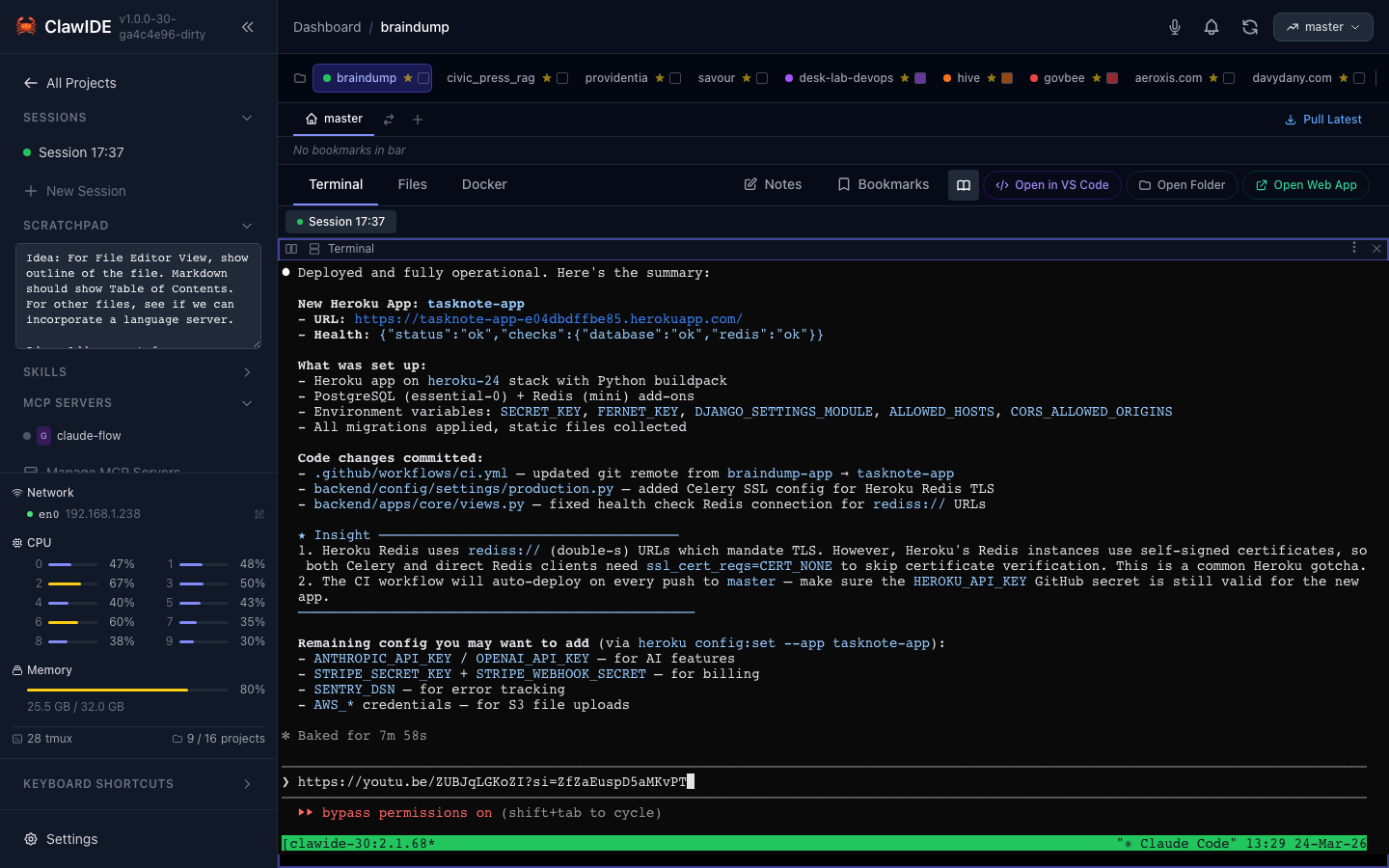
What Are MCP Servers?
MCP (Model Context Protocol) servers extend Claude Code’s capabilities by providing additional tools and resources. For example, an MCP server might give Claude access to a database, a web browser, or a custom API. ClawIDE lets you manage these servers without editing JSON files by hand.
Creating an MCP Server
- Open the MCP server management panel from the sidebar.
- Click New Server.
- Configure the server:
- Name — A unique identifier for the server
- Command — The binary or script to run (e.g.,
npx,node,python) - Args — Command arguments as a list
- Environment Variables — Key-value pairs passed to the process
- Auto Start — Whether to start the server automatically when ClawIDE launches
- Choose the scope: Global or Project.
- Click Save.
Process Lifecycle
Each MCP server can be individually controlled:
- Start — Launch the server process
- Stop — Gracefully terminate the process
- Restart — Stop and immediately re-launch
The server’s runtime status is tracked in real time, showing whether it’s running or stopped, its uptime, and its last exit code.
Log Viewer
View captured stdout/stderr output from any MCP server. Logs are available while the server is running and are retained after it stops, making it easy to debug configuration issues or monitor server behavior.
Scoping
MCP server configurations are stored in .mcp.json files:
- Global (
~/.claude/.mcp.json) — Available across all projects - Project (
<project>/.mcp.json) — Scoped to a single project
Move servers between scopes using the Move action.
Configuration Format
MCP servers are stored in the standard .mcp.json format:
{
  "mcpServers": {
    "my-server": {
      "command": "npx",
      "args": ["-y", "@my-org/my-mcp-server"],
      "env": {
        "API_KEY": "..."
      }
    }
  }
}